

Client portal guide
Connect your own domain to the client portal
Serve your client portal at an address your firm owns, such as portal.yourfirm.com. This guide covers every step: choosing the address, the two DNS records Atlas asks for and why, finding the company that runs your DNS, publishing the records there, and what happens until the address is live.
The journey at a glance
An address of your own goes through six stages. You do the first two. Atlas and the Atlas team do the rest, and the settings screen shows the current stage at every moment.
Add in Atlas
You enter the address. Atlas shows two records.
Publish the records
You add them at your DNS provider.
Records found
Atlas checks every 10 minutes for 7 days.
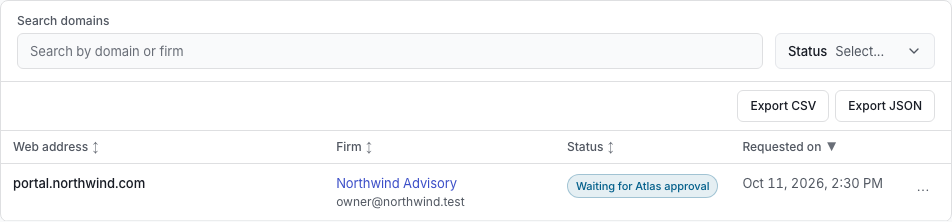
Waiting for Atlas approval
The Atlas team reviews the address.
Issuing certificate
A secure certificate is issued, usually within an hour.
Live for clients
Clients open the portal at your address.
Before you start
- You need to be an owner or administrator of the workspace in Atlas to add an address. Other members can read the records but cannot add or remove one.
- You need to be able to sign in at the company that runs DNS for your domain, or to know who can. That person does not need an Atlas account.
- A firm can have up to 3 domains of its own in use at once.
- Atlas looks for the records on its own for 7 days after you add the address, so publish them within that time.
- Publishing the records takes a few minutes. DNS can take from a few minutes to a day to show them, and the address then waits for approval.
Choose the address
Use a subdomain of a domain your firm owns, such as portal.yourfirm.com or clients.yourfirm.com. Choose a name that has no records yet, because a CNAME record cannot share its name with any other record.
Why not yourfirm.com itself
The bare domain, also called the root or apex, already carries the records for your website and email. DNS does not allow a CNAME record beside them, so Atlas refuses a bare domain.
Some providers offer ALIAS or ANAME records, or CNAME flattening, which imitate a CNAME record on the bare domain. They do not help here: they answer with addresses instead of a CNAME record, and Atlas looks for the CNAME record itself. Use a subdomain.
Avoid www and any name your website or email already uses.
Add the address in Atlas
Open Settings, then Client Delivery, and scroll to Client portal web address.
Under Domains you own, type the address in Domain to add and choose Add domain.
Atlas adds a card for the address with the status Waiting for DNS records and a table of the two records, with a Copy button for each name and each value.
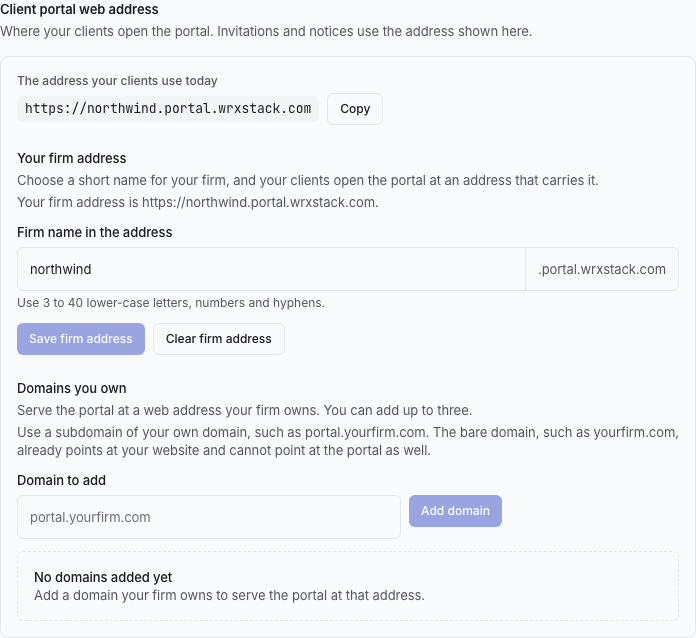
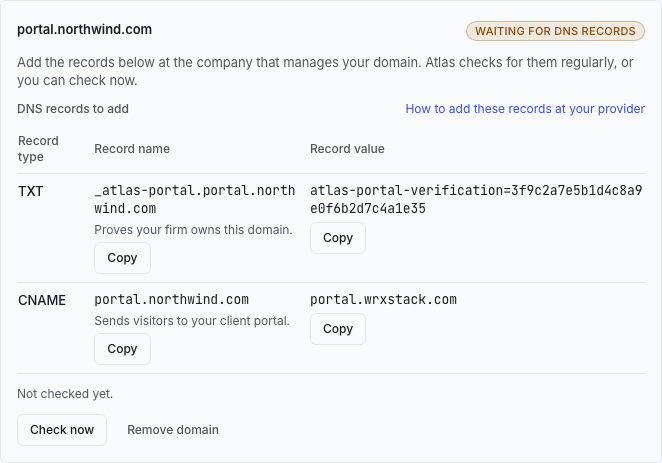
If someone else manages your DNS, they can open the same screen with any role that reads Client Delivery, or you can send them the two records.
The two records and why each exists
Atlas asks for two records. Publish both, at the same DNS provider, exactly as shown.
- The TXT record proves that whoever controls DNS for the address agrees to it serving your portal. Its name starts with _atlas-portal, so it never collides with other TXT records, and its value carries a code unique to your firm.
- The CNAME record makes the address lead to the client portal at portal.wrxstack.com. Atlas reads it to know the address is ready, and the certificate for the address can be issued only while it is in place.
Fill in your own values
Enter the address you added in Atlas, and paste the TXT value Atlas shows for it. Every record on this page and on the provider guides then shows your exact values. What you enter stays in this browser.
For example portal.yourfirm.com, without https:// in front of it.
Copy it from the card of your address in Atlas. It starts with atlas-portal-verification=
Your domain is read as yourfirm.com. If your DNS provider shows a different domain at the end of the name field, enter only the part of the name before that domain.
TXT record
Proves that your firm controls this address.
- Type
TXT- Name or host
_atlas-portal.portalFull name: _atlas-portal.portal.yourfirm.com
- Value or target
Copy this value from the Atlas screen, or paste it above to see it here. It is unique to your firm.
- TTL
The provider default, or 1 hour
CNAME record
Sends visitors of this address to your client portal.
- Type
CNAME- Name or host
portalFull name: portal.yourfirm.com
- Value or target
portal.wrxstack.com- TTL
The provider default, or 1 hour
Full names and short names
Atlas shows each name in full. Most DNS providers add your domain to whatever you type, so you enter only the part before it: _atlas-portal.portal rather than _atlas-portal.portal.yourfirm.com. Each provider guide says which form that provider wants.
Keep both records in place for as long as the address is in use.
Find the company that runs your DNS
The company where you bought the domain is the registrar. The company that answers DNS questions for it is the DNS host. They are often the same, but not always: if you moved your website to a hosting company or a website builder, that company may run your DNS now. Records work only at the DNS host.
To find the DNS host, look up the name servers of your domain. Run one of these commands in a terminal, with your own domain in place of yourfirm.com.
dig +short NS yourfirm.com
nslookup -type=NS yourfirm.com
whois yourfirm.com
Without a terminal, use one of these lookups in a browser. Enter your domain and choose the NS record type.
Name servers usually carry the name of the DNS host. Find yours in this table, then open that guide.
| Name servers usually look like | DNS host |
|---|---|
ns1.dns-parking.com | Hostinger |
ns01.domaincontrol.com | GoDaddy |
dns1.registrar-servers.com | Namecheap |
name.ns.cloudflare.com | Cloudflare |
ns-cloud-a1.googledomains.com | Squarespace Domains |
ns-123.awsdns-45.com | Amazon Route 53 |
curitiba.ns.porkbun.com | Porkbun |
ns1045.ui-dns.com | IONOS |
ns1.bluehost.com | Bluehost |
ns1.name.com | Name.com |
dns10.ovh.net | OVHcloud |
ns1.wixdns.net | Wix |
ns1.worldnic.com | Network Solutions |
ns1.digitalocean.com | DigitalOcean |
ns1-01.azure-dns.com | Microsoft Azure DNS |
ns-cloud-a1.googledomains.com | Google Cloud DNS |
ns1.dyna-ns.net | Dynadot |
ns-123-a.gandi.net | Gandi |
ns1.hover.com | Hover |
ns1.dnsowl.com | NameSilo |
If the name servers belong to a company not listed here, sign in there and look for a page named DNS, DNS zone or DNS records. The two records are standard, so every DNS host can publish them.
Publish the records at your DNS provider
Sign in at your DNS host and open the DNS records of your domain.
Add a TXT record. Put the name in the name or host field and the value in the value field.
Add a CNAME record. Put the name in the name or host field and portal.wrxstack.com in the value or target field.
Leave the TTL at the provider default, or choose 1 hour, and save.
Go back to Atlas and choose Check now on the card of the address.
Provider guides
Step by step instructions for 20 DNS providers, with the menus and field names of each provider and links to its own help.
Check my records
Atlas checks for both records every 10 minutes for 7 days after you add the address. Check now on the card checks at once.
A check asks public DNS two questions. Is there a TXT record at the TXT name holding exactly the value shown? Does the address have a CNAME record pointing at portal.wrxstack.com? Letter case and a final dot on the target do not matter, and a value your provider split into several strings is joined before it is compared.
When a record is missing or wrong, the card names it and says what was found instead, such as a CNAME record that points somewhere else. When both are right, the status changes to Waiting for Atlas approval.
To check for yourself, ask DNS directly. These commands use your address:
dig +short TXT _atlas-portal.portal.yourfirm.com
dig +short CNAME portal.yourfirm.com

nslookup -type=TXT _atlas-portal.portal.yourfirm.com
nslookup -type=CNAME portal.yourfirm.com
An answer that shows the value means DNS has the record. No answer usually means the record is not published yet, or is under a different name.
Waiting for DNS to update
A new record is usually visible within minutes, and can take up to a day. Resolvers remember answers for as long as the TTL allows, including the answer that a record does not exist, so a lookup made before you published can delay the next one.
Use a short TTL while you set up
If you expect to correct a record, choose a short TTL such as 5 minutes or 1 hour. A mistake then clears quickly.
What the Atlas screen shows
The card of each address shows its status and a sentence on what happens next. These are the statuses, in the order an address moves through them.
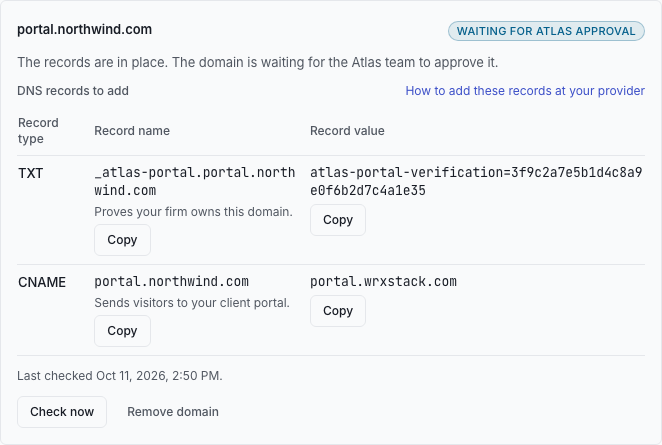
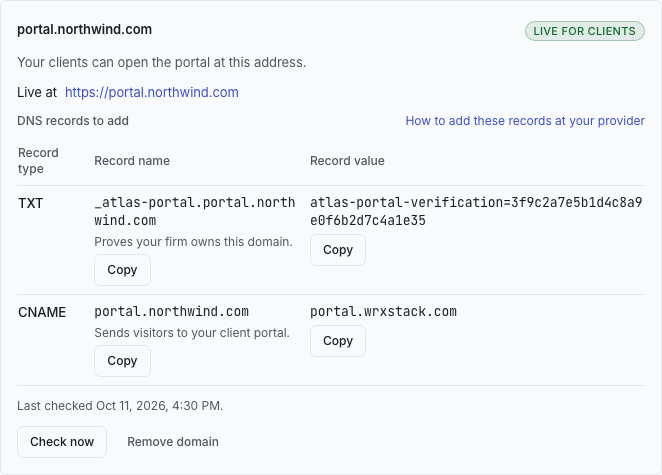
Approval and the secure certificate
The Atlas team approves every address a firm owns before it goes live. The team checks that the firm is a customer and that the address plainly belongs to it. A rejected address shows the reason on its card.
After approval the address shows Issuing certificate while a secure certificate is issued for it, usually within an hour. Atlas then marks it live, and the owners and administrators of your workspace are told in Atlas.
If your domain has CAA records
CAA records name the certificate authorities that may issue certificates for your domain. Add CAA records that allow letsencrypt.org and pki.goog, or the certificate cannot be issued. A domain without CAA records needs nothing.
After the address is live
- While a domain of your own is live, invitations and emails link to it rather than to the subdomain.
- Clients sign in on the Atlas sign-in page and are brought back to your address automatically. They need no separate account for it.
- Removing a domain stops the portal answering there at once. New links fall back to your subdomain, or to the main Atlas address, and the domain record is kept for your history.
- Atlas keeps checking the CNAME record every 10 minutes, and the card shows a message if it stops pointing at the portal.
- If you stop using the address, remove it in Atlas first, then delete both records at your DNS host.
Troubleshooting
Security notes
- Only owners and administrators can add or remove an address, and no address goes live without approval by the Atlas team.
- The TXT value is not a password. It only shows that whoever controls DNS for the address agreed to it serving your portal, so you can share it with the person who manages your DNS.
- The portal is served on your address over a secure connection only, with a certificate issued for that address.
- Clients sign in on the Atlas sign-in page and are brought back to your address with a single-use code that expires after one minute. Your address never receives a password.
- When you stop using an address, delete its CNAME record, so the name does not keep pointing at a service you no longer use.