

DNS provider guide
Hover: add the client portal records
How to publish the two DNS records for your client portal address at Hover. Each record below is written the way Hover asks for it.
Before you start
Name servers at Hover usually look like ns1.hover.com. If yours look different, your DNS is run elsewhere: see how to find your DNS host in the full guide.
- You can manage DNS records at Hover only while the domain uses the Hover name servers, ns1.hover.com and ns2.hover.com.
Where Hover shows the name servers
The Overview page of the domain shows the name servers on the left.
Fill in your own values
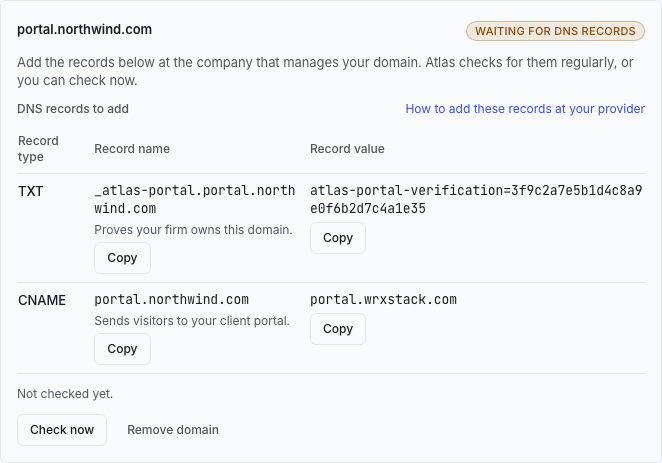
Enter the address you added in Atlas, and paste the TXT value Atlas shows for it. Every record on this page and on the provider guides then shows your exact values. What you enter stays in this browser.
For example portal.yourfirm.com, without https:// in front of it.
Copy it from the card of your address in Atlas. It starts with atlas-portal-verification=
Your domain is read as yourfirm.com. If your DNS provider shows a different domain at the end of the name field, enter only the part of the name before that domain.
Open the DNS editor
Sign in at Hover, then follow this path:
Add the TXT record
Choose Add a record.
In Type, choose TXT.
In Hostname, enter the name shown in the record below.
In Content, enter the value shown in the record below.
Save the record.
- Hostname is the subdomain only. Hover asks for @ where some services say to enter the whole domain.
TXT record
Proves that your firm controls this address.
- Type
TXT- Hostname
_atlas-portal.portalFull name: _atlas-portal.portal.yourfirm.com
- Content
Copy this value from the Atlas screen, or paste it above to see it here. It is unique to your firm.
Add the CNAME record
Choose Add a record.
In Type, choose CNAME.
In Hostname, enter the name shown in the record below.
In Target Name, enter the value shown in the record below.
Save the record.
CNAME record
Sends visitors of this address to your client portal.
- Type
CNAME- Hostname
portalFull name: portal.yourfirm.com
- Target Name
portal.wrxstack.com
How Hover names the fields
| Atlas shows | TXT record | CNAME record |
|---|---|---|
| Record type | Type | Type |
| Record name | Hostname | Hostname |
| Record value | Content | Target Name |
| Name form | The part before your domain | |
Things to watch at Hover
- Hover cannot hold a CNAME record on the root domain, which is one reason the portal needs a subdomain.
Check that it worked
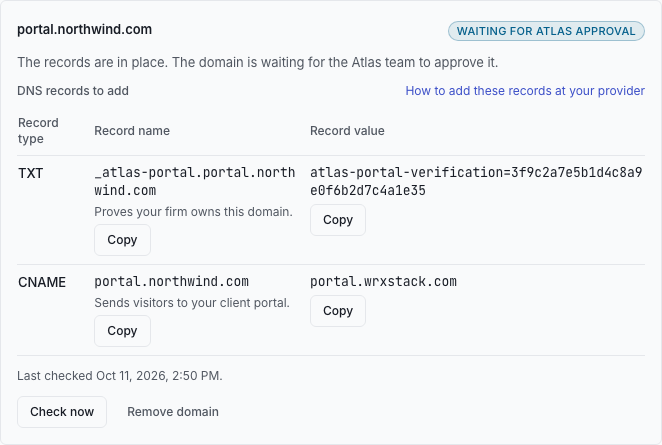
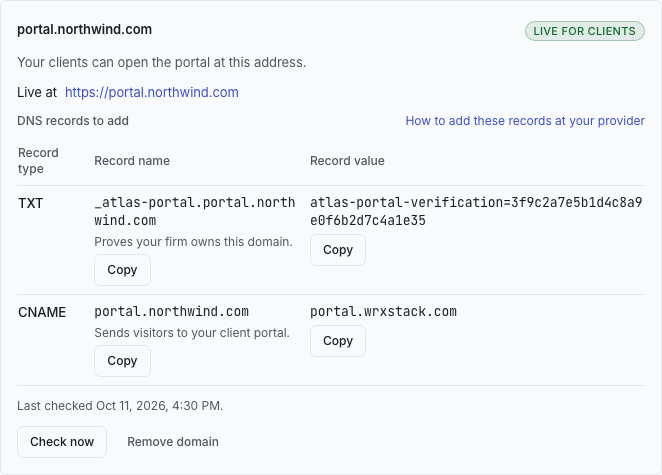
Go back to Atlas and choose Check now on the card of your address, or ask DNS yourself:
dig +short TXT _atlas-portal.portal.yourfirm.com
dig +short CNAME portal.yourfirm.com

nslookup -type=TXT _atlas-portal.portal.yourfirm.com
nslookup -type=CNAME portal.yourfirm.com
Hover does not state a time for record changes.
Official help from Hover
The help articles Hover publishes on these steps. If the screens at Hover have changed, follow them.
What this guide could not confirm
The help pages of Hover do not state the following. Where a label is missing above, look for the field described here.
- The save button label is not stated.
Other providers
The notes about Hover are in English, because they quote the labels Hover shows on its screens. Back to the full guide